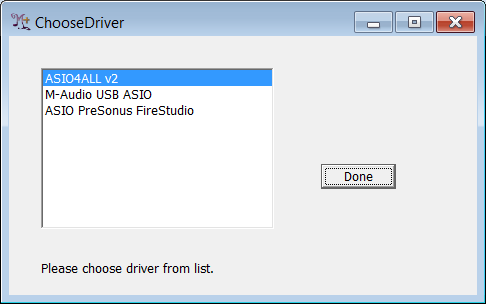
In the first case select the driver corresponding to the audio hardware you want to use. Please see Choose Driver for more information on making this choice. If no drivers are avaiable, download and install ASIO4ALL, as described in the Choose Driver documentation.
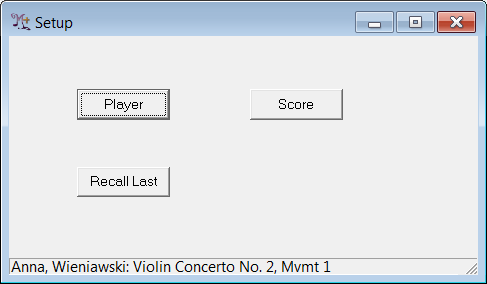
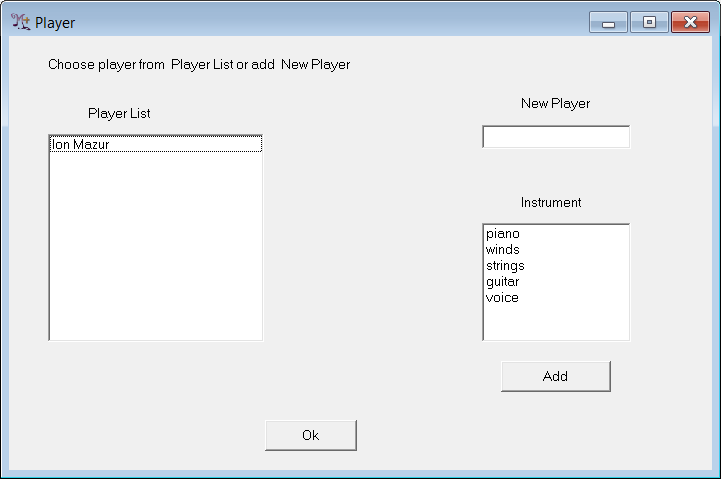
Every time M+O runs, you will first be prompted to choose the player and piece that will be performed through the Setup form, shown above. First click on "Player" to bring up the Player form, shown below. Enter your name in the "New Player" text box and click on the appropriate instrument family in the "Instrument" window. When you click on "Add," your name will be added to the "Player List" on your left. Click on "Ok" to return to the Setup form.
Now click the "Score" button on the Setup form, to bring up the Score form, shown below.
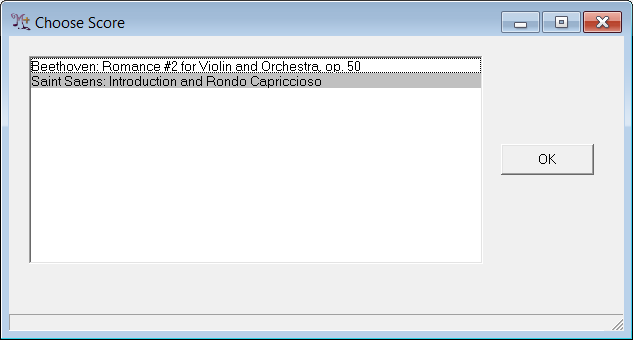
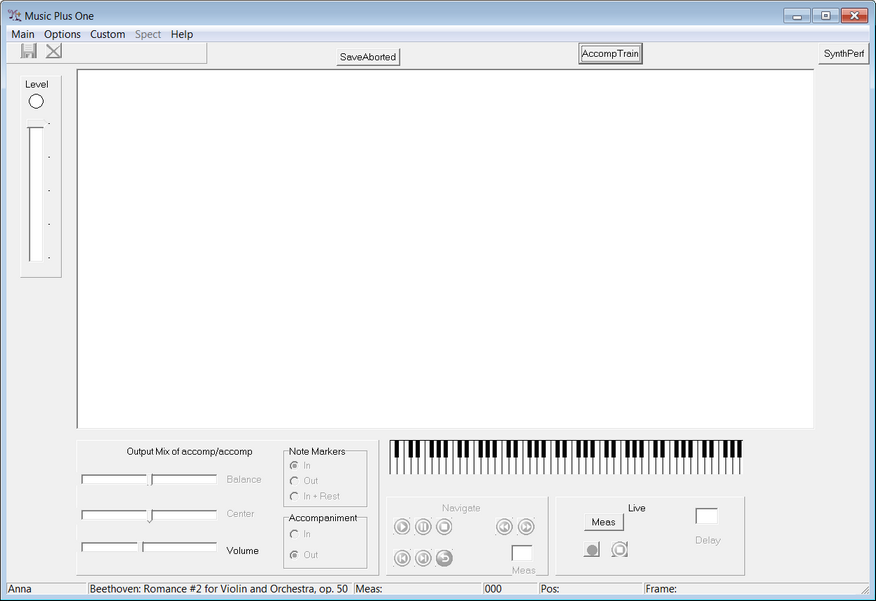
You will see the piece you have just downloaded, as well as any others that may have been included in the M+O distribution. Select the piece by highlighting it and clicking "Ok," or by simply double clicking on the piece. You now will see the M+O's Main Form, shown below, with both your name and your chosen piece on the Status Bar at the bottom of the Main Form.
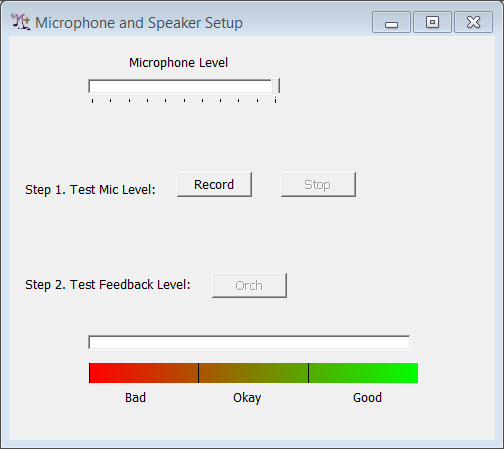
If you are running the program for the first time, the Microphone and Speaker Setup form will be displayed, as shown below. This form assists you in positioning your audio equipment correctly for M+O. Now folow the instructions in Microphone and Speaker Setup before continuing with this tutorial.
Most likely, you will need to refer to the printed music to use M+O. Choose "Show Solo Part" from the Options menu to display the solo part for your music, and print out the part if desired. Here M+O assumes you have a pdf reader installed on your computer. If you do not have a pdf reader you will need to install one to view the document.
Click the "Meas" button on the Live Panel at the bottom right of the Main Form, bringing up the Choose Range form, shown below.
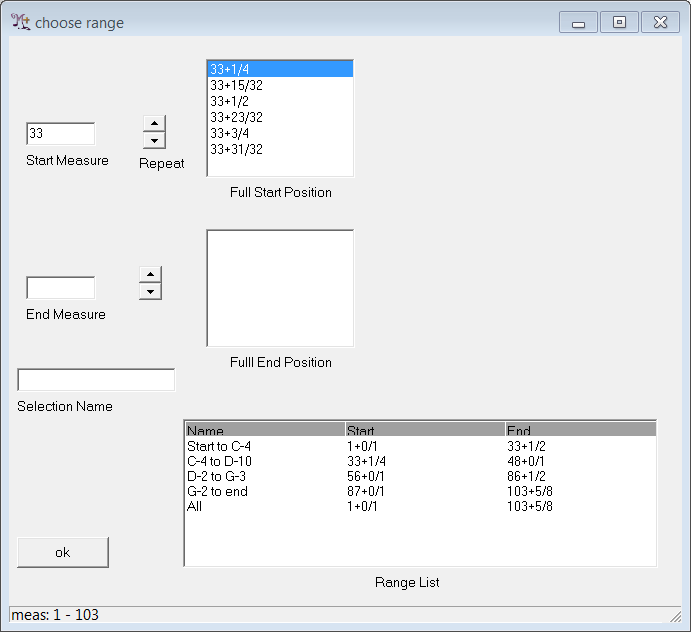
Consult your music to find a section where the soloist does not play. For instance, in the Beethoven 2nd Violin Romance the violin does not play in the passage beginning in measure 9, so we will type 9 in the "Start Measure" text box of the Choose Range form and select 9+0/1 from the "Full Start Position" text box. This Measure Number Plus Offset shorthand is used throughout M+O's user interface and here means to begin at the downbeat of measure 9. We will simply select two measures of music right now, so we'll type 11 in the "End Measure" text box and choose 11+0/1 from the "Full End Position" text box. Your actual range will be different if you are working with a different piece, though the idea is the same. Click on "ok" to dismiss the Choose Range form, and note that the range you selected now appears on the Status Bar.
Now click the red Begin Rehearsal button on the Live Panel. You should hear the orchestra audio begin. If you do not hear any audio, see the make sure that the "Volume Control" on the Mixer Panel is around the middle. Consult the Will M+O Work on My Computer? tutorial if you still don't hear audio. You can use the Stop Rehearsal button on the Live Panel at any time to end the rehearsal without completing the excerpt. If you do this, you can immediately restart with the Begin Rehearsal button. Or you can let the excerpt finish and click on the Delete Take button right below the main menu. As the excerpt plays you will see the Level Indicator fluctuate with the microphone level --- MPO records this and every other rehearsal. If you are listening with headphones, speak into your microphone as the audio plays to make sure your microphone is working. If the Level Indicator does not move, consult the Will M+O Work on My Computer? tutorial.
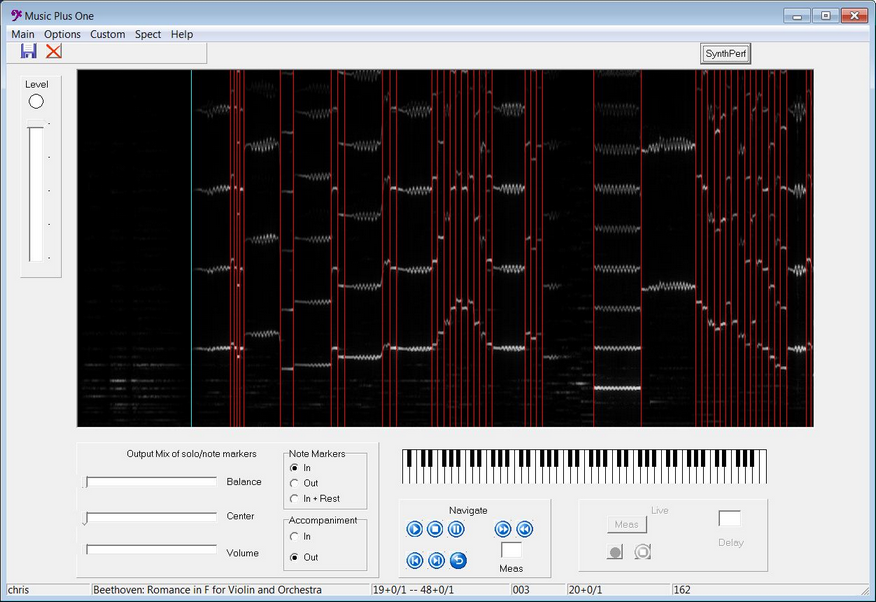
Now warm up your instrument and get ready to play with the accompaniment. The simplest way to use M+O is with your computer's internal microphone along with a pair of "ear bud" headphones or other headphones that allow you to hear yourself play. The section on Audio Setup describes other audio configurations involving external speakers and microphones, but you should use the headphones and on-board microphone for now. Use the Choose Range form to select an excerpt that begins a couple bars before a solo entrance and contains as much of the solo part as you would like to play. For instance, in the Beethoven 2nd Violin Romance we have selected 18+0/1 to 27+0/1. Click on the red Begin Rehearsal button to begin the rehearsal. When it comes time for your part to enter, play as you normally would. You can restart the rehearsal, as needed, but eventually you should play through to the end. When you have finished the excerpt M+O will display a Spectrogram of your audio in the center of the Main Form, as shown below.
Most first-time users feel obligated to follow the accompaniment, and do so during their first couple of rehearsals. The whole point of M+O is to allow you to lead the music so that you can play with an interpretation that is natural for you. Just as an experiment, try playing with rather extreme tempo changes, even if you think they are not appropriate for the piece at hand. You may even try playing a few wrong notes, just to see what happens. Most people find that they can play with as much freedom as they like, while still being followed by M+O. Furthermore, M+O is not bothered by the wrong notes you might play on occasion. If the first rehearsal isn't perfect, M+O will improve through repetition through its automatic training ability.
We assume now that you have played through your excerpt and can see the Spectrogram of your performance displayed in the Main Form, as shown above. Using the controls on the Navigation Panel, you can play back your rehearsal starting from any note. For instance, click on the Play button followed by the Stop or Pause buttons. Move forward or backward with the Move Current Position buttons. As you do this you will hear clicks marking each of your note onsets, whose purpose is discussed in Rehearsal Review.
Now move to the Mixer Panel and set the Note Markers radio button to "Out" and the Accompaniment radio button to "In." Play the audio while you experiment with sliders on the Mixer Panel, which will control the balance and panning between the solo instrument and the accompaniment, as well as the overall volume. Find settings that you like and choose Output Wave from the "Spect" menu. M+O will create a "Wave" (.wav) file of your rehearsal and write it to a location of your choosing. You can listen to this file in any media player.